
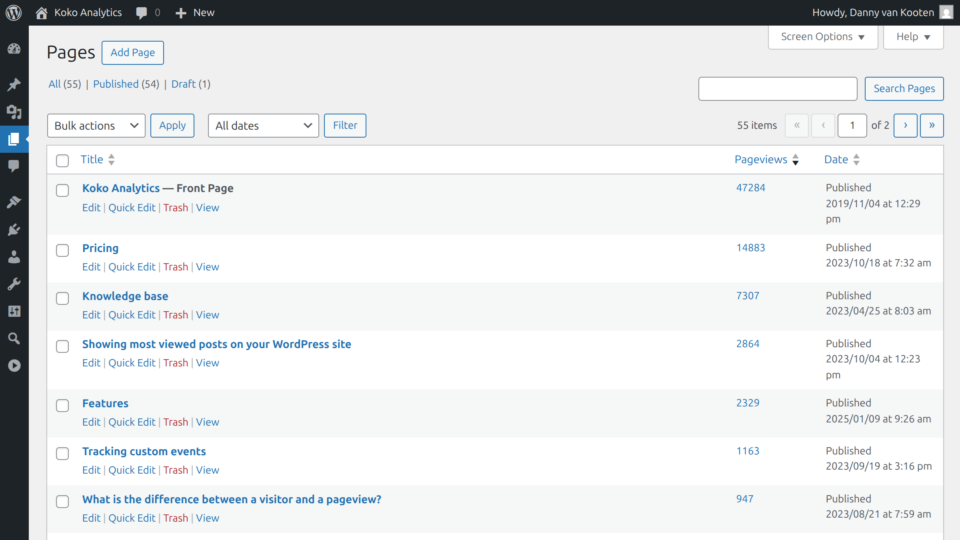
Koko Analytics Pro adds a Pageviews column to the overview table of all public post types (Posts, Pages, and any custom post types). This column shows the total number of pageviews for each post over a recent period, giving you a quick glance at content performance without leaving the WordPress admin.
How it works
The Pageviews column appears automatically in your post list tables once Koko Analytics Pro is activated. Each row displays the total number of pageviews for that post over the last 28 days (by default).
Clicking the pageview count takes you directly to the Koko Analytics dashboard, filtered to that specific post and date range.
Configuring the number of days
You can change the number of days used to calculate the pageview total:
- Go to any post type overview screen (e.g., Posts > All Posts).
- Click Screen Options in the top-right corner of the screen.
- Under the Koko Analytics fieldset, enter your preferred number of days (between 1 and 3650).
- Click Apply.
This setting is saved per user, so each team member can configure their own preferred date range.
Hiding the column
If you prefer not to see the Pageviews column, you can hide it using WordPress’s built-in column visibility controls:
- Go to any post type overview screen.
- Click Screen Options in the top-right corner.
- Uncheck the Pageviews checkbox.
The column will be hidden until you re-enable it.
Sorting by pageviews
The Pageviews column is sortable. Click the Pageviews column header to sort your posts by their pageview count in ascending or descending order. This makes it easy to find your most popular (or least popular) content at a glance.