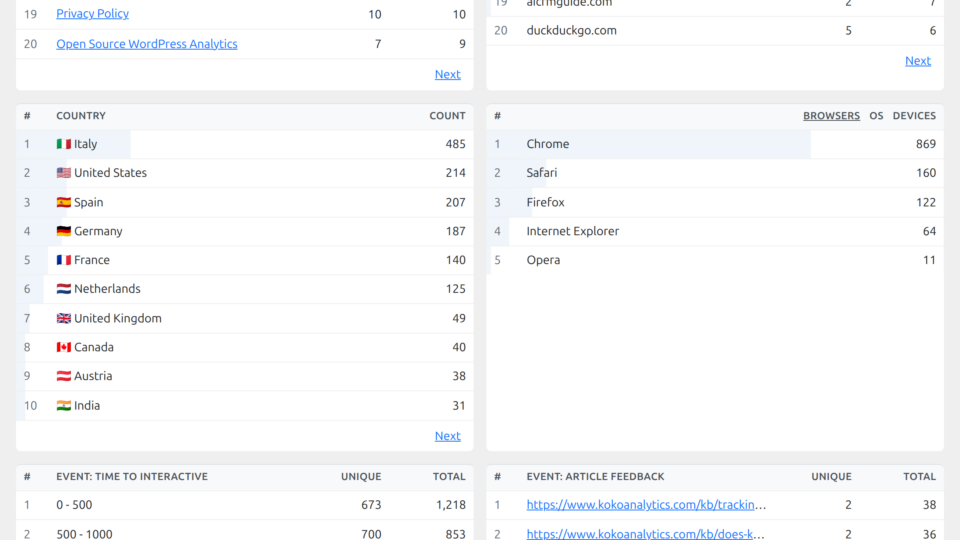
As of Koko Analytics Pro version 2.2 and up, you can configure the plugin to keep track of the browsers, operating systems and device that your site was visited from.
Here is how to set that up correctly.
Step 1: Install Koko Analytics Pro
The first step is to ensure you have the Koko Analytics Pro add-on installed and activated. You need version 2.2 or later for device tracking to be available.
Step 2: Enable device tracking
With that out of the way, head over to Koko Analytics > Settings > Tracking and locate the “Enable device tracking” section.
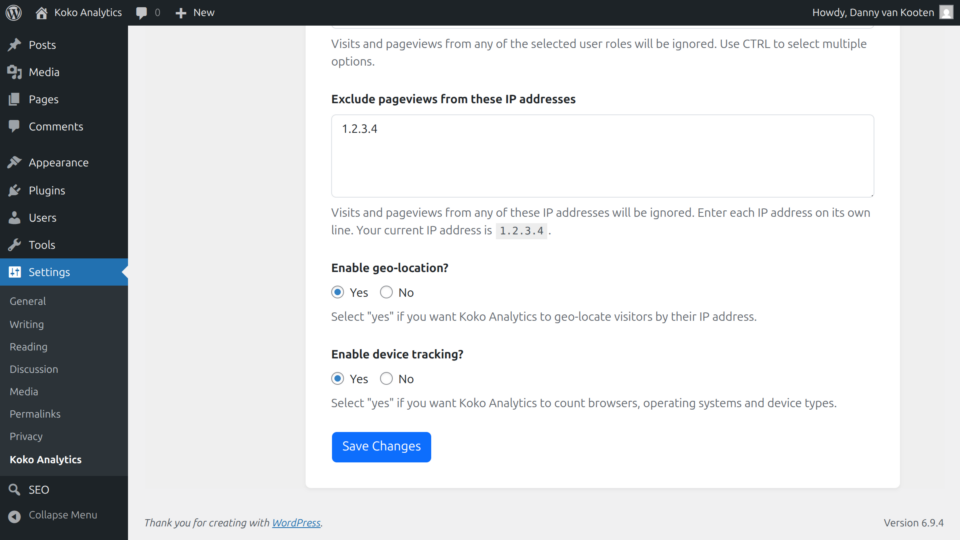
Ensure the setting for device tracking is enabled and then save your changes. From now on, Koko Analytics will detect what types of browsers, operating systems and devices your visitors are using. All without intruding on their privacy or storing anything that may reveal their identity.
Here’s what the statistics will look like on your dashboard. You can also see this in action in our live demo.