
If you’ve been using Plausible Analytics and want to switch to Koko Analytics, you can import your historical data so you don’t lose your statistics.
Before you start
- The import adds to existing data. If you already have Koko Analytics data for the date range you’re importing, the imported data will be added on top. To avoid inflated numbers, set the end date to just before you activated Koko Analytics.
- The import can not be reverted. Consider making a backup of your database before proceeding.
What you need
A CSV export from Plausible. You can export your data from the Plausible dashboard under Site Settings > Imports & Exports > Export. This gives you a ZIP file containing several CSV files.
Koko Analytics can import the following files from the export:
- imported_visitors.csv — daily visitor and pageview totals
- imported_pages.csv — pageviews per page
- imported_sources.csv — referrer data
You upload one file at a time.
Step by step
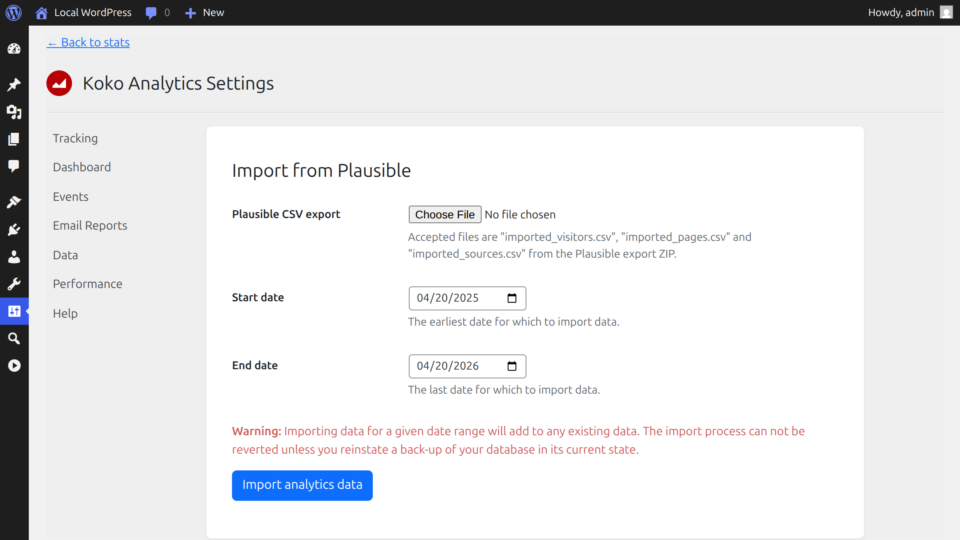
- In your WordPress admin, go to Dashboard > Analytics > Settings > Data and open the Plausible importer tab.
- Click Choose File and select one of the CSV files from your Plausible export.
- Set the Start date to the earliest date you want to import.
- Set the End date to just before you activated Koko Analytics.
- Click Import analytics data and confirm.
- Repeat for each CSV file you want to import.
Troubleshooting
The import fails or times out.
Try importing a shorter date range. Some hosting environments have strict limits on upload size or request duration.
My numbers don’t match Plausible exactly.
Minor differences are normal. Plausible and Koko Analytics count visitors differently, so totals may not line up perfectly for overlapping periods.