Import historical data from Jetpack Stats
If you’ve been using Jetpack Stats and want to switch to Koko Analytics, you can import your historical pageview data so you don’t lose your statistics.
Before you start
There are a few things to keep in mind before running the import:
- The import adds to existing data. If you already have Koko Analytics data for the date range you’re importing, the imported pageviews will be added on top. To avoid inflated numbers, set the end date to just before you activated Koko Analytics.
- The import can not be reverted. Consider making a backup of your database before proceeding.
- Jetpack only provides pageview counts, not the number of unique visitors. After the import, your visitor count for the imported period will show as zero.
What you need
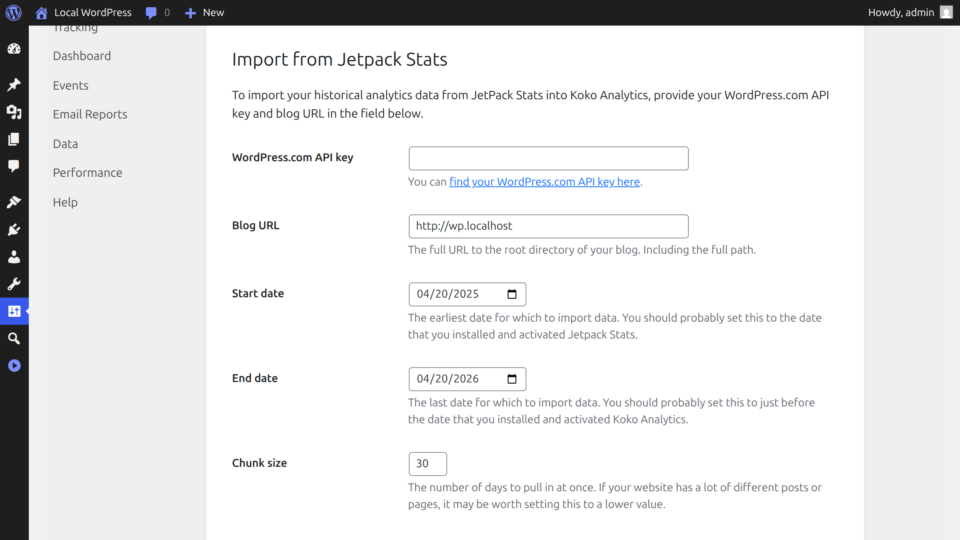
- Your WordPress.com API key. You can find your API key here.
- Your blog URL, including the full path if WordPress is installed in a subdirectory.
Step by step
- In your WordPress admin, go to Dashboard > Analytics > Settings > Data and open the Jetpack Stats importer tab.
- Enter your WordPress.com API key.
- Verify that the Blog URL is correct. It should match the URL connected to your Jetpack account.
- Set the Start date to the date you first activated Jetpack Stats.
- Set the End date to just before you activated Koko Analytics.
- Leave the Chunk size at 30 days. If your site has many posts or pages and the import times out, try lowering this to 7 or even 1.
- Click Import analytics data and confirm.
The import may take a while depending on the date range and the number of posts on your site. Do not close the browser tab while it is running.
Troubleshooting
The import times out or shows an error.
Lower the chunk size and try again with a smaller date range. Some hosts have strict limits on how long a single request can run.
My visitor counts show zero for the imported period.
This is expected. Jetpack’s API only provides total pageview counts, not unique visitor data.
I accidentally imported data twice.
The imported pageviews will have been added on top of your existing data. You can restore a database backup, or use the data export and import feature on the settings page to correct the numbers manually.